SimVimX 3 Configurator (GUI)
The SimVimX 3 graphical user interface is a highly flexible I/O configurator.
It allows you to “program” virtually any complex input or output function without relying on intermediate, fixed keywords (as in the previous version) by directly assigning combinations of datarefs and commands, with a number of conditions and additional parameters.
The configurator interactivity allows you to instantly see all changes to your output and input devices as you configure them.
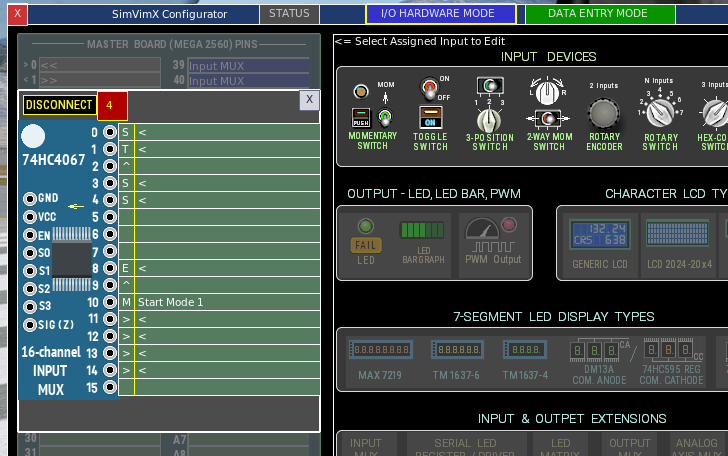
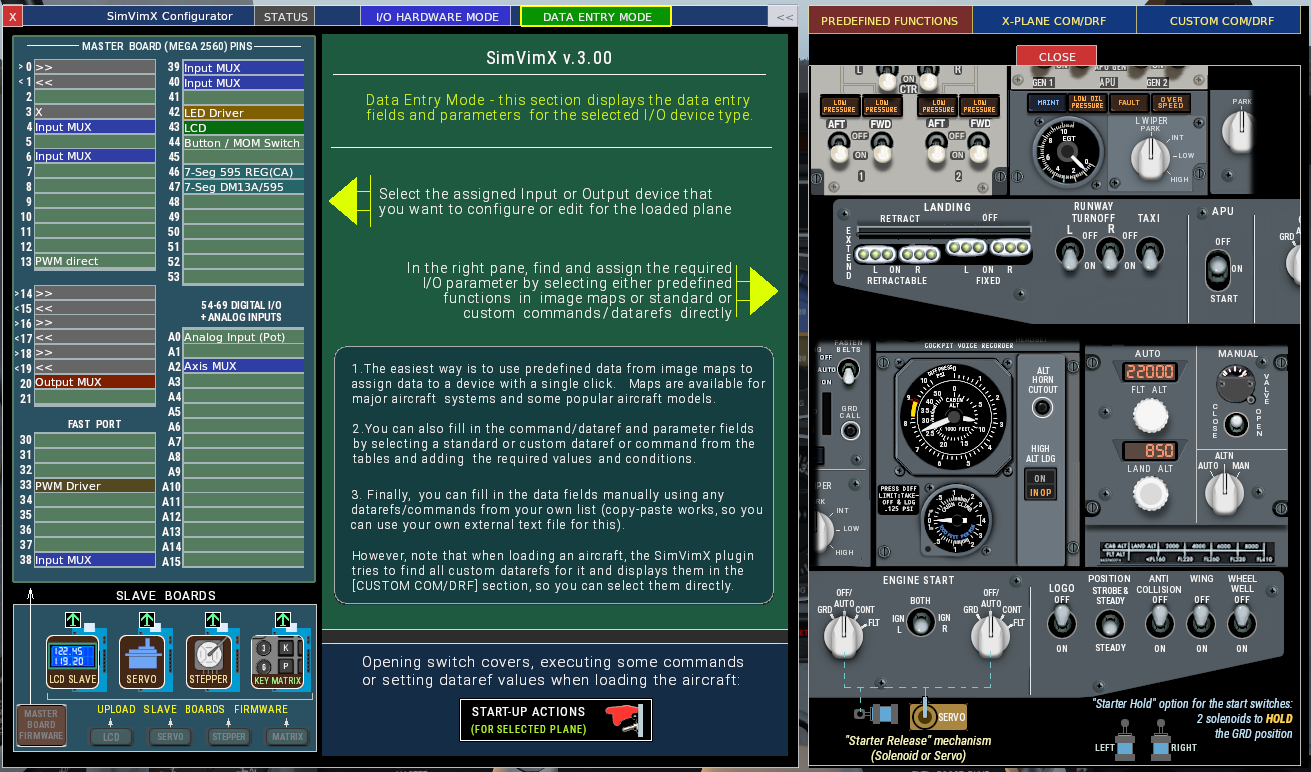
The main configuration window consists of three areas: 1) Left – I/O Hardware, 2) Middle – Devices/Data Entry, and 3) Right – predefined, standard, or custom functions with image maps for quick assignment by one click, and lists of standard and custom datarefs/commands for direct assignment. Two buttons located at the top of the window are used to switch between hardware assignment and data entry mode:
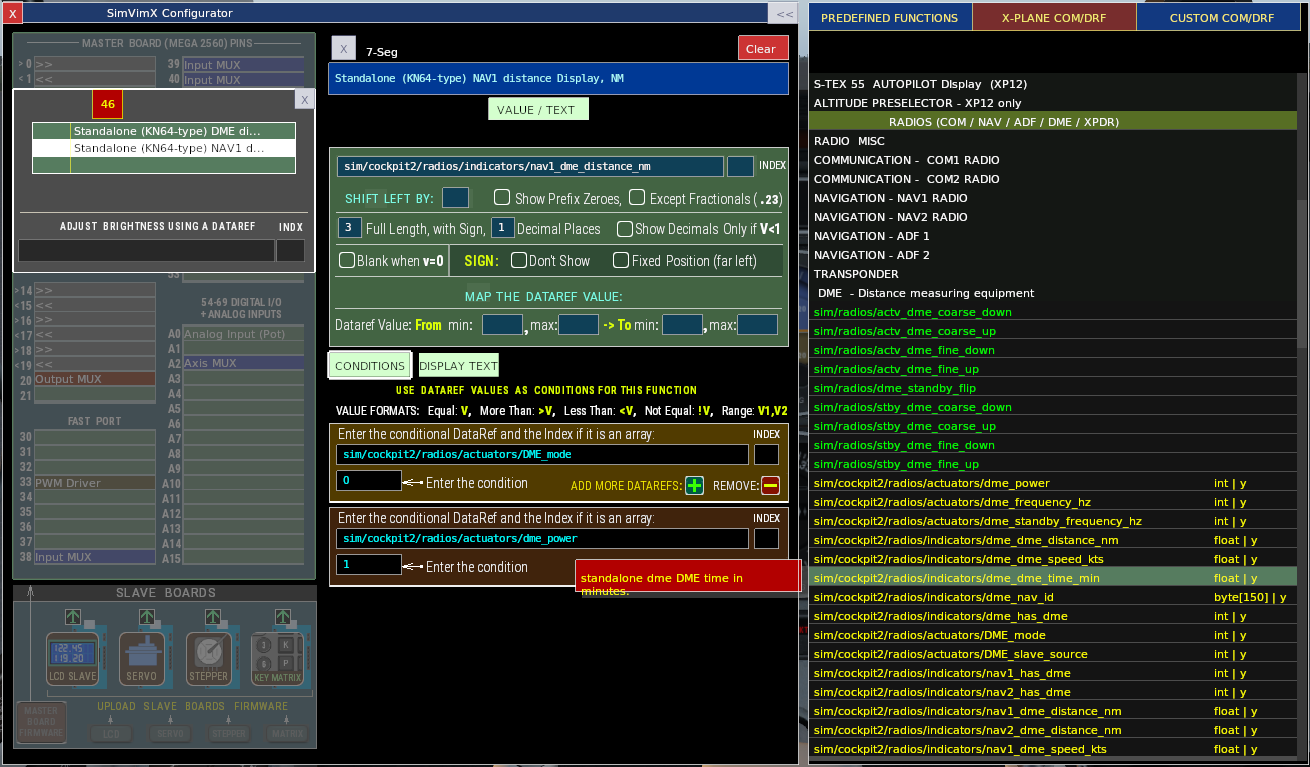
For example, you can program complex multi-function displays and encoders by assigning a series of datarefs and commands with individual conditions (using conditional datarefs).
– I/O devices (multiplexers, switches, LEDs, displays) can be “connected” to the boards in Hardware I/O mode before data assignment; additional devices can be added at any time..
– You can assign long names to any specific I/O functions that you assign, in text format, such as: “Battery Backup Switch – Upper Right”.
– You can then select any connected hardware I/O (by clicking on it) and directly map it to standard or custom commands, data links with values, and other parameters. You can immediately test whether it works.
– The data configuration for the current master board hardware set is saved for every plane independently, and any plane configuration can be copied to another plane by selecting the item #4 the plugin “Configuration Options” menu.
1. Master board and I/O Hardware connections
Left area always shows the master board with all I/O devices connected to it – input and output extensions, LED drivers, displays and slave boards
2. Devices Assignment & Data Entry
In the I/O HARDWARE MODE, all available I/O devices are displayed in the central area. Simply select the desired device and click the pin (direct or extended I/O) available for that device on the master board, slave board or input (output) extension.
When you select any assigned device in DATA ENTRY MODE, this section displays the data entry fields and parameters available for that I/O device type.
1. The easiest way is to use the data from the section on the right, where you can select a variety of complex predefined functions and assign data to a device with a single click on the image maps. There are also maps with predefined functions for standard and some popular aircraft (e.g., B738Zibo, A321 Tollis, B757 FF, and others).
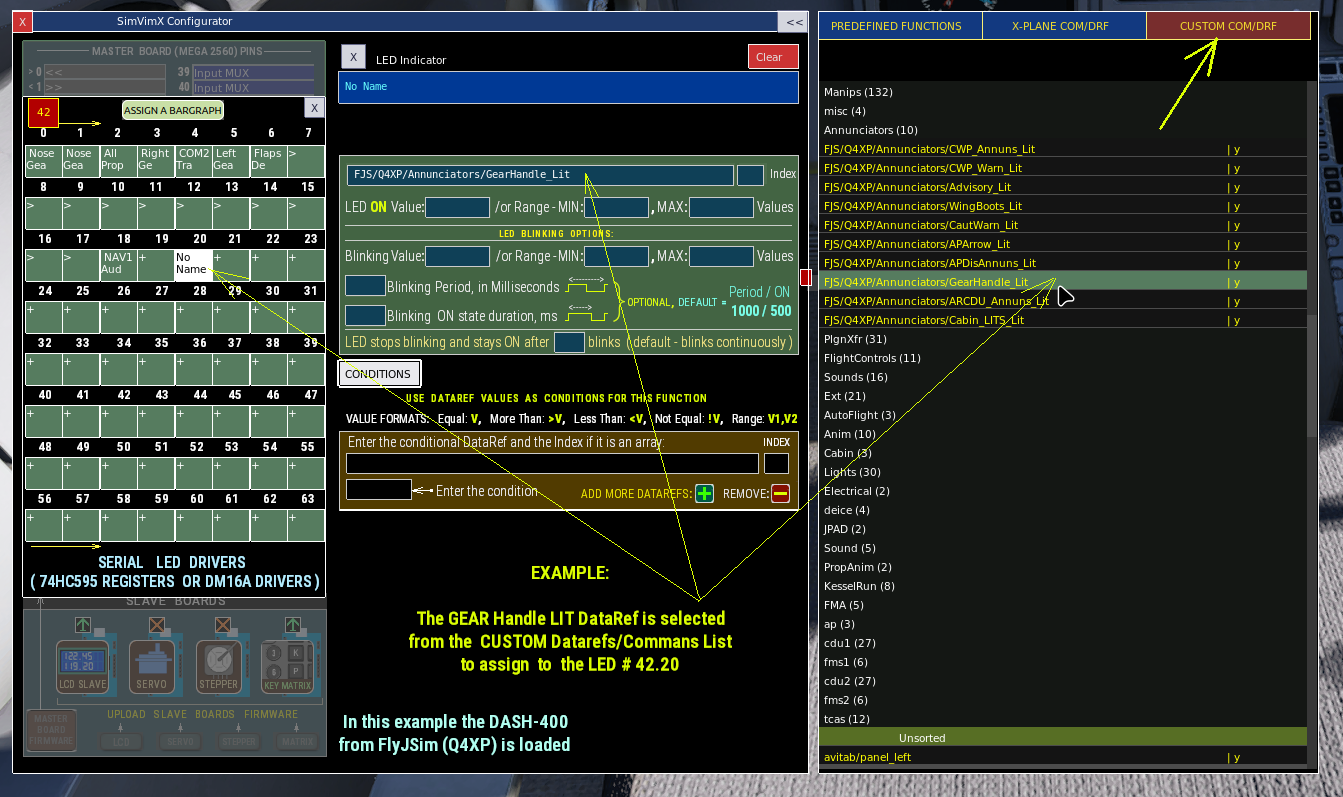
2. You can also fill the command/dataref fields selecting standard or custom datarefs/commands from the tables in the right section, and add required values, conditions.
3. Finally, you can completely populate the data fields manually using any datarefs/commands from your own list (the Copy-Paste function is working, so you can use your external text file for this).
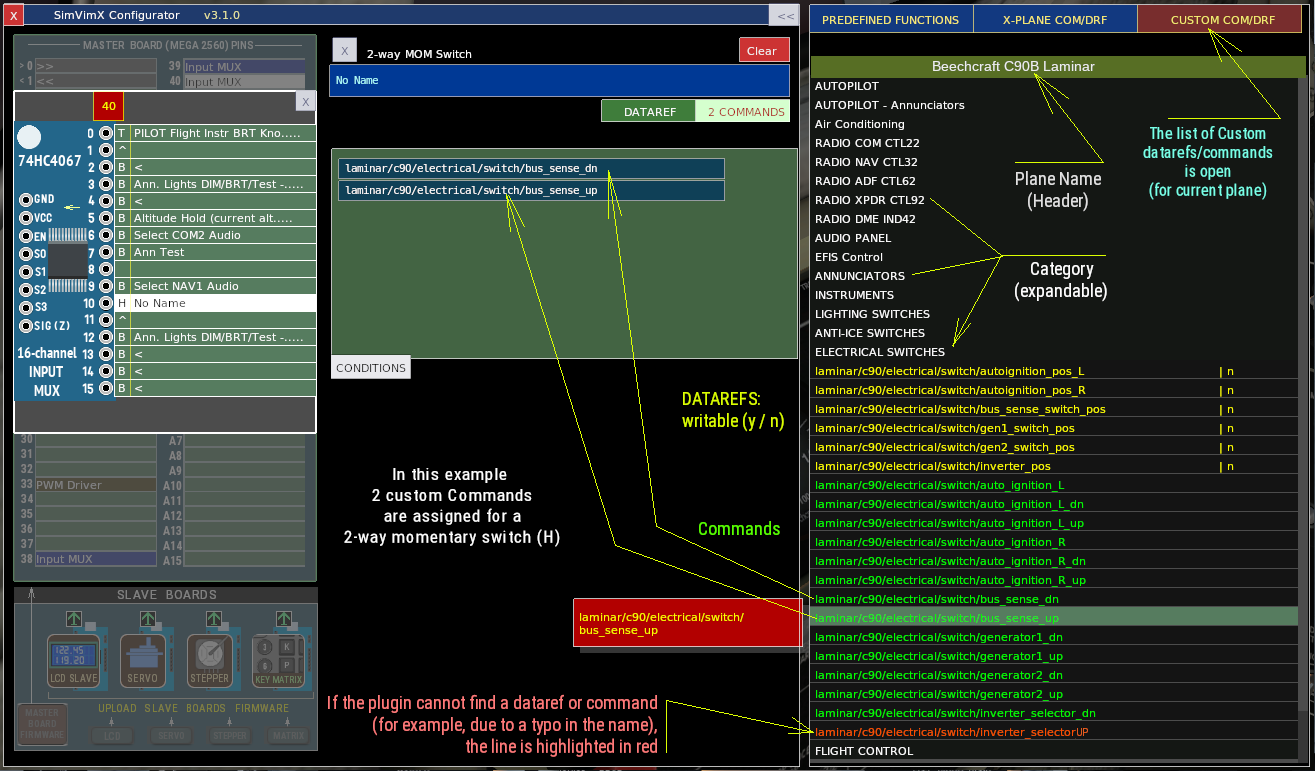
However, note that when the aircraft is loading, SimVimX plugin finds all custom datarefs for it and shows them in the [CUSTOM COM/DRF] section.
1) Predefined I/O function >>>
This section presents predefined functions in the form of graphical maps, allowing you to assign any valid input or output element with a single mouse click: simply select the appropriate input or output on the left side of the interface (in data entry mode), then locate and select the desired function in the image-map window.
There are 3 subsections with predefined config maps that you can select:
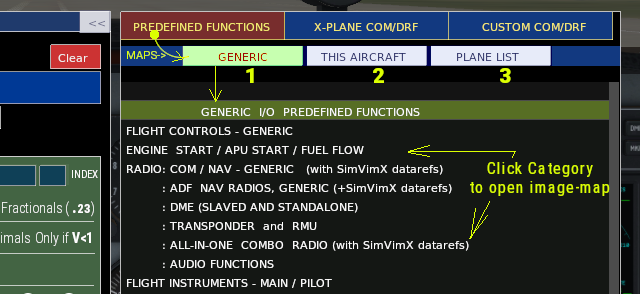
1) GENERIC – Contains predefined image maps for all major aircraft systems and uses either X-Plane’s datarefs/commands or SimVimX custom functions.
2) THIS AIRCRAFT – Contains predefined image maps for the currently loaded aircraft model and uses all datarefs and commands specific to that aircraft (custom and standard).
3) PLANE LIST – This list is provided primarily for reference: it allows you to see which aircraft models (and their corresponding configuration maps) are currently included in the SimVimX library. But can be used as a template for any similar aircraft
>>> Read more details on this page: Predefined Functions
2) Lists of X-Plane Commands and DataRefs
The X-PLANE COM/DRF section contains the list of all X-Plane’s standard commands and datarefs usable for the cockpit hardware assignment grouped by categories. You can select one of the “connected” hardware items on the left side, select the dataref or command field you want to fill and then find and assign the relevant dataref of command(s) to it.
>>> Read more details on this page: X-Plane Datarefs/Commands List
3) Lists of Custom Commands and DataRefs
The CUSTOM COM/DRF section contains the list of custom commands and datarefs detected by the plugin for the selected aircraft model.
>>> Read more details on this page: Custom Aircraft Datarefs List